How to Create a Google Review QR Code for Acrylic Stands (Boost Local SEO)
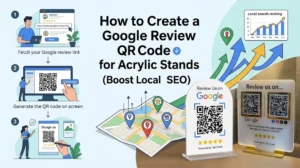
If you run a local business—whether it’s a boutique hotel, a bustling restaurant, or a desert camp—you already know that Google Reviews are the lifeblood of your local SEO. But let’s be honest: asking customers to manually open their maps, search for your business name, and leave a rating creates too much friction. Most happy customers simply forget by the time they walk out the door.
The most effective solution to this problem is placing an acrylic stand with a custom Google Review QR Code right at your checkout counter or dining tables. A Google Review QR code is simply a scannable graphic that instantly directs a customer’s smartphone camera straight to your Google Business review page, eliminating all extra steps.
Why Choose Acrylic Stands for Google Reviews?
Acrylic provides a premium, durable, and weather-resistant look suitable for high-end hospitality environments. When placed directly in the customer’s line of sight during checkout or dining, it serves as a silent, continuous call-to-action. You can even combine technologies by sticking an NFC (Near Field Communication) tag on the back of the acrylic stand, giving customers the ultimate convenience to either “tap” or “scan” their phones.
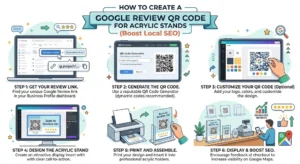
3 Steps to Create Your Free QR Code
Before sending anything to the printing agency, you need to generate a high-quality code that actually converts.
Step 1: Find Your Exact Link. Log in to your Google Business Profile and click on the “Ask for reviews” or “Get more reviews” widget. Copy the unique short URL provided (it typically looks like g.page/r/…).
Step 2: Generate at QRCodeVibe. Visit QRCodeVibe.com and paste your URL into the generator. You can easily customize the design by adjusting the colors and embedding your business logo directly in the center for a highly professional finish.
Step 3: Download and Print. Download your code in a vector format (like SVG or high-resolution PNG). When printing on acrylic, ensure the QR code is at least 2 x 2 centimeters (0.8 x 0.8 inches) and maintains high contrast—always use a dark-colored code on a light background.
– Frequently Asked Questions (FAQs)
Do Google Review QR codes ever expire?
No. As long as your actual Google review link remains active, the QR code generated through a reliable platform like QRCodeVibe will continue to work indefinitely.
Do I have to pay to create a QR code without a watermark?
Absolutely not. You can generate and download high-resolution Google Review QR codes on QRCodeVibe without any watermarks, sign-up requirements, or scan limits.
What file format should I download for acrylic printing?
It is best to download it in a vector format like SVG, or a high-resolution PNG. These formats ensure the edges of the QR code remain razor-sharp and easily scannable.
Capturing more 5-star ratings does not have to be a complicated or awkward process. By automating review collection with a simple scan, you remove the friction that stops happy customers from sharing their experiences. Ready to skyrocket your local SEO? Generate your free, high-quality Google Review QR Code at QRCodeVibe.com today.